If you’re trying to convert documents into editable, usable text, let me tell you something upfront — and I’m saying this after more than 20 years of doing this work:
It doesn’t matter whether your document is handwritten or printed. Scan quality decides everything.
Most people assume problems begin during OCR or typing. In reality, problems begin much earlier — at the scanning stage.
Over the years, I’ve worked with:
- Handwritten notes
- Old library books
- Printed research papers
- Faded publications
- Yellowed pages from archives
- Photocopies of photocopies
Different sources, same problem: poor input quality.
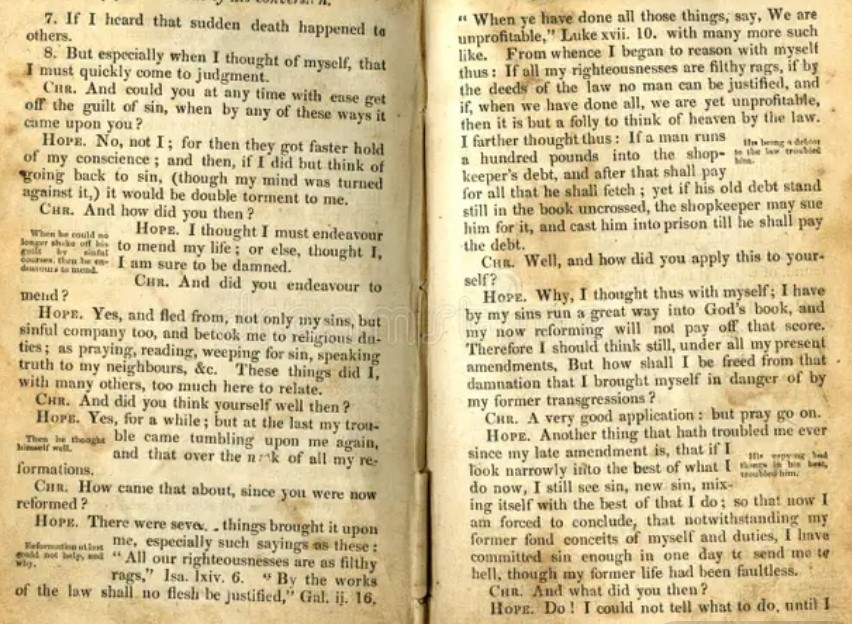
Why Printed Documents Are Not “Easy” Documents
There’s a common belief that printed documents are simple to convert. That’s rarely true — especially when the material is old.
Printed pages from books and libraries often have:
- Yellow or darkened paper
- Faded or uneven ink
- Thin pages with text bleeding through
- Curved text near bindings
- Shadows caused by book spines
- Multiple fonts and layouts on the same page
From experience, I can tell you this clearly: Old printed material can be more challenging than handwritten notes.
And yet, many people scan these pages casually, assuming software will fix everything later. It won’t.
The Real Purpose of Scanning (Most People Miss This)
Scanning is not just about “capturing” a page.
The real goal of scanning is to:
- Preserve contrast
- Maintain alignment
- Eliminate visual noise
- Present text clearly to the next step — whether OCR or manual typing
If the scan fails here, no tool or service can fully fix it later.
This is something I’ve seen repeatedly: clients try OCR, edit the output, still feel unhappy — and then send the document for professional typing. By then, the scan has already limited what’s possible.
Before You Scan Anything, Do This First
Whether your document is handwritten, printed, or taken from an old book, the first step is always preparation.
Before scanning or taking photos:
- Flatten loose pages as much as possible
- Remove staples, clips, or sticky notes
- Clean dust and smudges
- For books, open pages gently and avoid forcing the spine
- Keep the background clear and distraction-free
This is not optional. This is foundational.
I’ve seen clean content ruined simply because pages were folded or cluttered.
Why Experience Matters at This Stage
After thousands of documents, you start recognizing patterns.
You can look at a scan and immediately know:
- OCR will fail here
- Manual typing will take longer than expected
- Formatting will break
- Errors will multiply
This judgment doesn’t come from software manuals. It comes from experience.
And the good news is — you don’t need 20 years to avoid these mistakes. You just need to understand where things usually go wrong.
What This Series Will Help You Do
This blog series is not about selling tools or pushing services.
It’s about showing you:
- How professionals approach document conversion
- Where most people unknowingly sabotage their own results
- Why “editable” does not automatically mean “usable” or “publishable”
In the next part, I’ll talk specifically about preparing printed pages and old books for scanning, including issues most guides never mention.
Questions or Clarifications?
If something in this article raised questions — about scanning quality, OCR limitations,
or preparing documents for typing — you're welcome to reach out.
I’m always happy to clarify practical issues or explain details related to document
conversion and typing.
You can email me at
dollartypingservice@gmail.com.
Continue Reading
In Part 2, I go deeper into the practical side — including binding shadows, fragile books, bleed-through issues, and a professional method I use to eliminate spine shadows entirely.
➜ Read: Preparing Old Printed Books and Handwritten Pages for Scanning